

Understanding HTML Tags and Elements
The very first building blocks of every webpage

I build clean and simple web experiences and learn something new every day.
What is HTML and why do we use it?
Whenever I open a website and see text, buttons, images, or links, everything I see is structured using HTML.
HTML stands for HyperText Markup Language.
But instead of memorizing the full form, I like to think of HTML in a much simpler way:
HTML is the skeleton of a webpage
Just like a human body needs a skeleton to give it shape and support, a webpage needs HTML to:
define headings
create paragraphs
place images
add links and buttons
Without HTML, a webpage would have no structure at all.
CSS adds beauty. JavaScript adds behavior.
But HTML? HTML gives meaning and structure.
That’s why HTML is always the first thing we learn in web development.
HTML is made of tags
HTML works using tags.
A tag is like a label or instruction that tells the browser:
Hey browser, this piece of content is special.
For example:
This is a heading
This is a paragraph
This is a button
All of that information is given using HTML tags.
What is an HTML tag?
An HTML tag is written inside angle brackets:
< >
A very common example is the paragraph tag:
<p>
By itself, this alone doesn’t display anything. It’s just an instruction not the content.
To actually show somethingon the webpage, we usually need two tags.
Opening tag, closing tag, and content
Most HTML tags come in pairs:
Opening tag → tells the browser where something starts
Closing tag → tells the browser where it ends
Content → the text or element inside
Example:
<p>Hello World</p>
Let’s break this down:
<p>→ opening tag</p>→ closing tagHello World→ content
Together, these three parts form one complete unit.
What is an HTML element?
This is where beginners usually get confused and that’s completely normal..
So let’s make it very clear.
An HTML element = opening tag + content + closing tag
Using the previous example:
<p>Hello World</p>
This entire line is one HTML element.
Important difference to remember:
Tag → just the markup (
<p>or</p>)Element → the complete structure
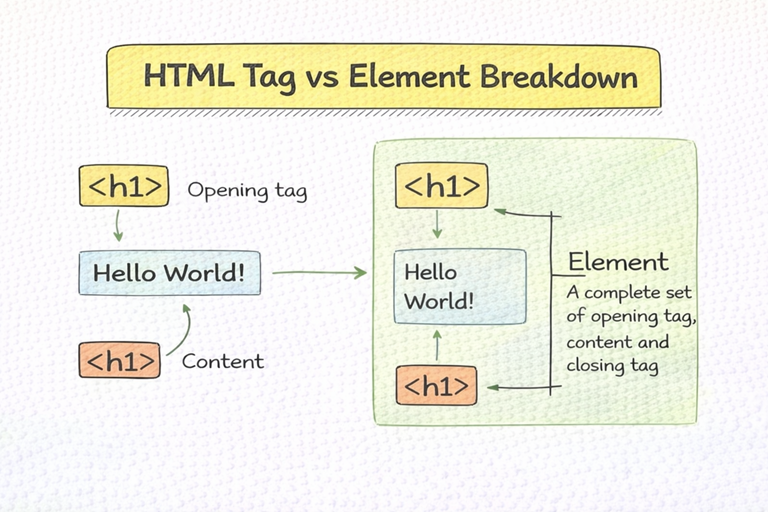
Once I understand this difference, a lot of confusion automatically disappears.
Thinking in a simple analogy
Imagine a box 📦
Opening tag → opening the box
Content → what’s inside the box
Closing tag → closing the box
The box with something inside is the element.
Just opening or closing the box alone doesn’t mean much the full box is what matters.
Self-closing (void) elements
Not all HTML elements have content.
Some elements don’t need a closing tag at all. These are called self-closing or void elements.
Examples:
<img>→ image<br>→ line break<hr>→ horizontal line<input>→ input field
Example:
<img src="image.png" />
Why is there no closing tag?
Because these elements:
don’t wrap text
don’t contain child elements
work as standalone items
They simply exist on the page and do their job.
Block-level vs inline elements
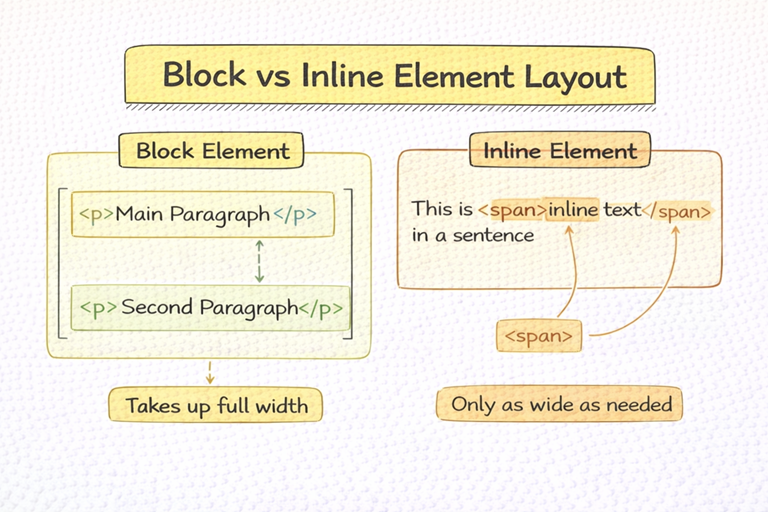
This concept is very important for understanding layout.
HTML elements are mainly divided into two types:
Block-level elements
Block-level elements:
start on a new line
take full available width
Examples:
<div><p><h1>to<h6><section>
If I place two block elements one after another, they appear one below the other.
Inline elements
Inline elements:
do not start on a new line
only take as much width as needed
Examples:
<span><a><strong><em>
Inline elements flow inside text, just like words in a sentence.
Simple example to understand block vs inline
Consider this sentence:
I love learning web development
If I wrap the entire sentence inside a
<p>, it behaves like a block.If I wrap only the word love inside a
<span>, only that word changes everything else stays the same.
This difference becomes extremely important when styling with CSS.
Commonly used HTML tags (beginner level)
I don’t need to learn every tag at once. These few are enough to start building real webpages.
Structure & text
<h1>→ main heading<h2>to<h6>→ subheadings<p>→ paragraph<div>→ generic block container<span>→ generic inline container
Links & media
<a>→ link<img>→ image
Forms (just basics)
<input><button><label>
Mastering these alone already puts me ahead of most beginners.
Inspecting HTML in the browser (best learning habit)
One of the best habits I can develop while learning HTML is inspecting real websites.
When I:
right-click on a webpage
click Inspect
I can see:
HTML structure
nested elements
how tags are actually used in real projects
This turns every website into a free HTML classroom.
Final takeaway
HTML is not scary.
It’s just a way to:
describe content
give structure
create meaning
If I understand:
what a tag is
what an element is
block vs inline behavior
I already understand the foundation of web development.
Everything else - CSS, JavaScript, frameworks - is built on top of HTML.
And that’s why learning HTML properly is always worth it.